Customers walk in, ask for the WiFi password, and you end up spelling out a 16-character string across a noisy room. It happens dozens of times a day. A free WiFi QR code eliminates that entirely — guests scan a code with their phone camera and connect to your network in seconds.
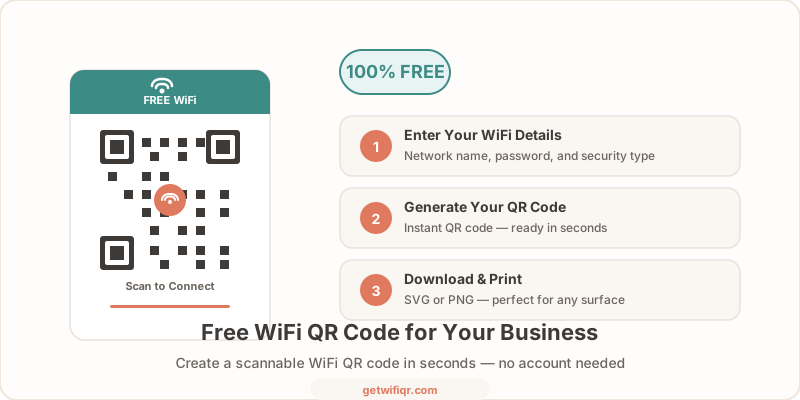
Here’s how to create one for free, what you get, and how businesses are using WiFi QR codes to improve the customer experience.
Create Your Free WiFi QR Code in 3 Steps
The entire process takes under a minute. No account, no email, no signup.
Step 1: Enter Your WiFi Details
Go to the free WiFi QR code generator and enter three things:
- Network name (SSID) — exactly as it appears on your router (case-sensitive)
- Password — your WiFi password, including any special characters
- Security type — WPA/WPA2/WPA3 for most modern routers
That’s all the generator needs.
Step 2: Generate Your QR Code
Click Generate. Your WiFi QR code appears instantly. The code contains your network credentials in an encoded format that smartphones know how to read — when someone scans it, their phone automatically connects to your network.
Everything is processed locally in your browser. Your password never leaves your device and is never stored on any server.
Step 3: Download and Print
Download your QR code in the format that fits your needs:
- PNG — best for printing on paper, table tents, cards, and stickers
- SVG — best for scaling to any size without losing quality (posters, window decals, signage)
Print it, frame it, laminate it, or stick it wherever your customers need WiFi access.
What You Get for Free
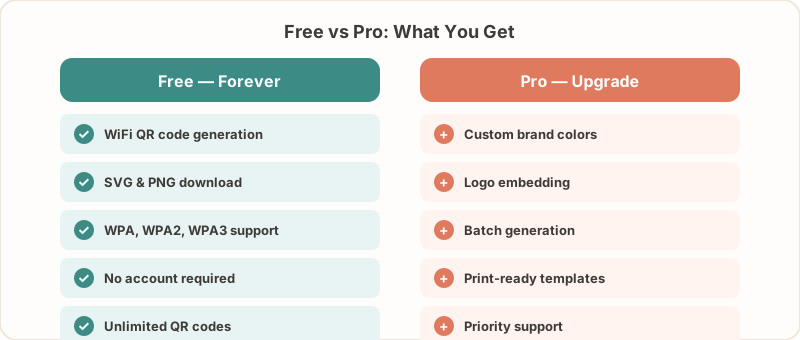
The free tier of GetWiFiQR gives you everything you need to create and share a working WiFi QR code:
- Unlimited QR code generation — create as many codes as you need
- PNG and SVG downloads — both formats, full resolution, no watermarks
- All encryption types — WPA, WPA2, WPA3, WEP, and open networks
- Hidden network support — works even if your SSID isn’t broadcast
- No account required — no signup, no email, no strings
- Privacy by default — credentials processed in-browser, never sent to a server
Your QR code is fully functional the moment you download it. Print it and guests can scan to connect immediately.
What Pro Adds
For businesses that want more customization, GetWiFiQR Pro unlocks:
- Custom colors — match the QR code to your brand palette
- Logo embedding — place your business logo in the center of the QR code
- Batch generation — create multiple QR codes for different networks at once
The free version handles the core job perfectly. Pro is there when you want the QR code to match your brand.
Use Cases: How Businesses Use Free WiFi QR Codes
Restaurants and Cafes
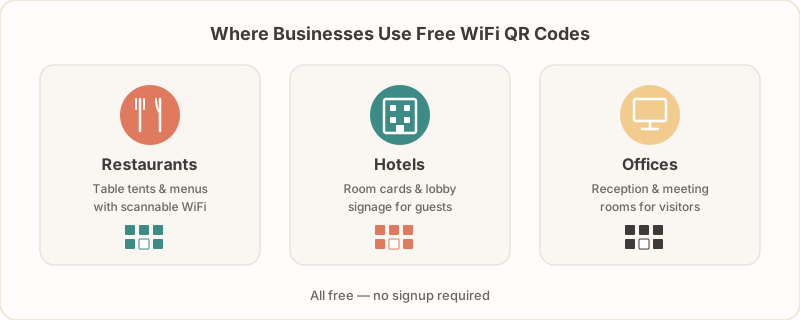
Place a QR code on every table tent, menu, or countertop sign. Customers scan and connect without flagging down staff. It’s one less interruption during busy service, and customers appreciate the seamless experience.
Many restaurants print the QR code directly on their menus alongside their logo. For more ideas, see our restaurant WiFi guide.
Hotels and Vacation Rentals
Include a WiFi QR code in the welcome packet, on the nightstand card, or posted near the room’s desk. Guests connect within seconds of walking in — no more calling the front desk or squinting at a tiny password on the router.
For hotels with different networks per floor or wing, generate a separate QR code for each. Our hotel WiFi setup guide covers this in detail.
Offices and Coworking Spaces
Print a QR code for the guest WiFi network in meeting rooms, the lobby, and reception. Visitors connect instantly without IT having to walk them through the password. Keep the internal network separate and secure.
See our office WiFi guide for best practices on separating guest and corporate networks.
Events and Conferences
Large events with hundreds of attendees can’t afford to have everyone ask for the WiFi password individually. Print the QR code on badges, signage, and event programs. Attendees scan once and they’re online.
Check our event WiFi guide for venue-specific tips.
Airbnb and Short-Term Rentals
WiFi instructions are one of the most common guest questions. A framed QR code by the front door or on the fridge solves it permanently. Update it whenever you change the password by printing a new code — takes less than a minute.
Our Airbnb WiFi guide has placement ideas that work for self-check-in properties.
How WiFi QR Codes Delight Customers
A WiFi QR code is a small detail that signals a business pays attention to the customer experience. Here’s why it matters:
It removes friction. Asking for a password, typing it wrong, asking again — that’s friction. A QR code scan takes two seconds. Customers notice when things just work.
It works on every phone. iPhones (iOS 11+) and Android phones (10+) can scan WiFi QR codes natively using the built-in camera app. No app download required. That covers nearly every smartphone your customers carry.
It looks professional. A printed QR code with clear “Scan to Connect” messaging looks polished. It signals that your business has its details sorted — the same way clean signage and organized spaces do.
It saves staff time. Every password request that a QR code handles is a question your staff doesn’t have to answer. In a busy restaurant or hotel lobby, that adds up.
It’s more secure than shouting the password. A QR code posted at the point of service is more controlled than verbally sharing credentials in a crowded room. Combine it with a guest network and regular password rotation for best results.
Tips for Getting the Most Out of Your WiFi QR Code
Use a guest network. Always generate your QR code for a dedicated guest WiFi network, not your primary one. This keeps your internal devices and data isolated. Most routers made in the last decade support guest networks — check your router’s admin panel.
Print big enough to scan. The QR code should be at least 2x2 inches (5x5 cm) for comfortable scanning. Bigger is better in low-light environments or when customers scan from a distance.
Add a clear label. Print “Scan to Connect to WiFi” or “Free WiFi — Scan Here” next to the QR code. Not everyone knows what a WiFi QR code does, and a label removes any confusion.
Laminate for durability. If the QR code will be on a table or counter, laminate it or use a plastic card holder. A matte finish works better than glossy — less glare means easier scanning.
Rotate your password periodically. Change your guest WiFi password monthly (or after each guest checkout for rentals). Generate a new QR code each time and swap out the old print. The whole process takes under a minute.
For more display and placement ideas, see our WiFi password display ideas guide.
Create Your Free WiFi QR Code Now
A WiFi QR code takes 30 seconds to create and saves your customers — and your staff — real frustration every day. Whether you run a restaurant, hotel, cafe, office, or Airbnb, a scannable WiFi code is one of the easiest upgrades you can make.
Create your free WiFi QR code →
No account. No email. No catch. Just a QR code that works.
Related Articles
- How to Create a WiFi QR Code (Free Step-by-Step Guide) — detailed walkthrough of the creation process
- WiFi Password QR Code — Create a Scannable Code — turn any WiFi password into a QR code
- Are WiFi QR Codes Secure? What You Need to Know — security best practices for sharing WiFi via QR
- Guest WiFi Best Practices for Small Businesses — set up a secure guest network the right way
- WiFi Password Display Ideas for Every Business — creative ways to display your QR code