You are at a hotel, café, or a friend’s house. Instead of asking for the WiFi password, you spot a QR code on the table. One scan and you are connected — no typing, no typos, no asking someone to repeat “lowercase L or number one.”
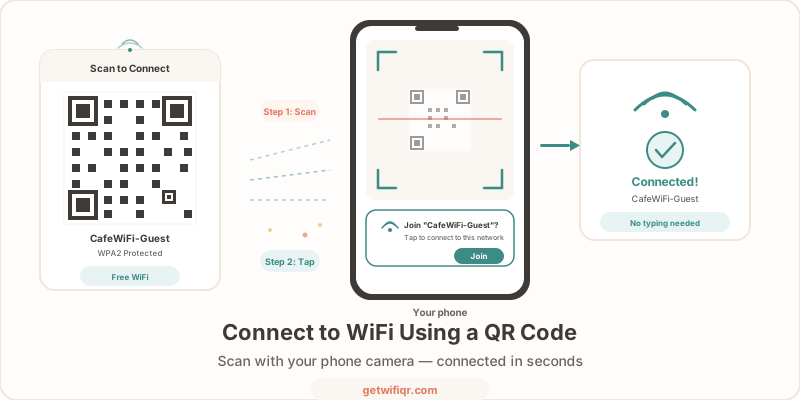
This guide shows you exactly how to use a QR code to connect to WiFi on every major device: iPhone, Android, Windows, and Mac.
What Is a WiFi QR Code?
A WiFi QR code is a small square barcode that stores a network name (SSID), password, and security type. When your phone’s camera reads it, the device offers to join that network automatically.
Behind the scenes, the QR code contains a simple text string:
WIFI:T:WPA;S:NetworkName;P:Password;;Your phone knows how to parse this format natively — no app needed on modern devices. If you want the full technical breakdown, our guide to creating WiFi QR codes explains the format in detail.
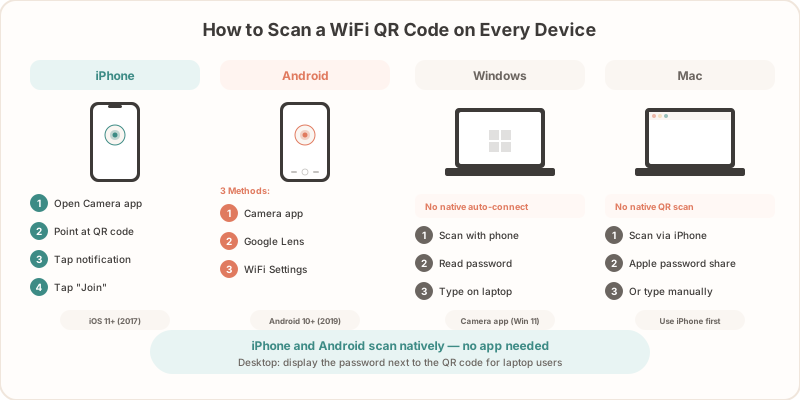
How to Connect on iPhone
iPhones have supported WiFi QR codes since iOS 11 (2017). Here is how to connect:
- Open the Camera app — the default one, not a third-party camera
- Point your camera at the QR code — hold steady, about 6–12 inches away
- Tap the notification banner that appears at the top of the screen — it will say something like “Join Wi-Fi network [NetworkName]”
- Tap Join on the confirmation prompt
- You are connected
That is it. The entire process takes under five seconds.
iPhone Troubleshooting
- No notification appears? Go to Settings > Camera and make sure “Scan QR Codes” is toggled on.
- Banner disappears too fast? Open the Control Center, long-press the QR Code Scanner tile, and scan from there instead.
- Still not working? The QR code may be damaged or the WiFi credentials may have changed. Ask the network owner.
How to Connect on Android
Android added native WiFi QR code support in Android 10. There are three ways to scan:
Method 1: Camera App
- Open your camera app and point it at the QR code
- Tap the pop-up link or notification that appears
- Confirm to join the network
Note: Not all Android camera apps support QR scanning by default. Samsung, Google Pixel, and OnePlus cameras do. If yours does not, use Method 2.
Method 2: Google Lens
- Open Google Lens (search bar widget or Google app > Lens icon)
- Point it at the QR code
- Tap the WiFi network suggestion to connect
Google Lens works on virtually every Android phone and is the most reliable fallback.
Method 3: WiFi Settings Scanner
- Go to Settings > Network & Internet > Wi-Fi (or Settings > Connections > Wi-Fi on Samsung)
- Tap the QR code icon next to “Add Network” or at the top of the WiFi list
- Scan the QR code with the built-in scanner
- The network is added and connected automatically
This method is useful when the camera app does not detect the code.
Android Troubleshooting
- Camera does not recognize the code? Try Google Lens — it handles more QR formats.
- Connected but no internet? The QR code worked, but the network itself may have a captive portal (a login page). Open your browser and you should be redirected.
- Wrong password error? The WiFi password may have changed after the QR code was created. Ask the network owner for an updated code.
How to Connect on Windows
Windows does not connect to WiFi from a QR code automatically, but you can still use the code to get the password quickly.
Windows 11
- Open the Camera app (search “Camera” in the Start menu)
- Switch to Barcode mode if available, then scan the QR code
- The app displays the encoded text — you will see the network name and password in the
WIFI:T:...string - Copy the password, go to Settings > Network & Internet > Wi-Fi, find the network, and paste the password
Windows 10
Windows 10 does not have a built-in QR scanner. Your options:
- Scan with your phone first — most phone cameras will show the network name and password as text you can read
- Use a QR reader app from the Microsoft Store
- Type the credentials manually from whatever source provided the QR code
For offices and businesses, a better approach is to display the password alongside the QR code so laptop users are covered too. Our WiFi password display ideas post has practical examples.
How to Connect on Mac
macOS does not scan WiFi QR codes natively. Here is the fastest workaround:
- Use your iPhone to scan the QR code (see the iPhone steps above)
- If both devices are signed into the same Apple ID with Bluetooth on, your Mac may prompt you to share the WiFi password automatically through Apple’s built-in password sharing
- Alternatively, scan the QR code with your iPhone camera, note the network name and password from the notification, and enter them manually on your Mac under System Settings > Wi-Fi
If you have a QR code image file (not a printed code), you can use a free online QR decoder or the macOS Preview app with a third-party extension to extract the text.
Why Businesses Should Offer WiFi QR Codes
If you run a hotel, restaurant, office, or any space with guest WiFi, a QR code solves real problems:
- No more password questions. Staff stop getting interrupted. Guests stop waiting.
- Fewer connection errors. Scanning is faster and more accurate than typing a 12-character mixed-case password.
- Cleaner signage. A small QR code on a table tent or wall sign looks better than a paragraph of WiFi instructions.
- Works in any language. QR codes are universal — no translation needed for international guests.
- Easy to update. Change your password, generate a new code, print it. Done.
The QR code format is standardized across all modern phones, so one code works for every guest regardless of what device they carry.
Create a WiFi QR Code for Free
Want to make your own WiFi QR code? It takes about 30 seconds:
- Go to the free WiFi QR code generator
- Enter your network name, password, and security type
- Download or print the QR code
- Display it where guests can see it
The generator works for any WiFi network — home routers, business access points, mobile hotspots, and guest networks. No sign-up required.
Create your WiFi QR code now →
Related Articles
- How to Create a WiFi QR Code (Free Step-by-Step Guide) — detailed walkthrough of the creation process
- Free WiFi QR Code for Your Business — create a free QR code in seconds
- WiFi Password QR Code — Create a Scannable Code — turn any WiFi password into a QR code
- Create a QR Code for Your Mobile Hotspot — share hotspot access via QR
- Are WiFi QR Codes Secure? What You Need to Know — security best practices for sharing WiFi via QR