You are at a hotel, a cafe, or a friend’s apartment. There is a small printed QR code next to the router or on a table tent. You point your phone at it, tap once, and you are on the WiFi — no password typing, no asking anyone to spell it out.
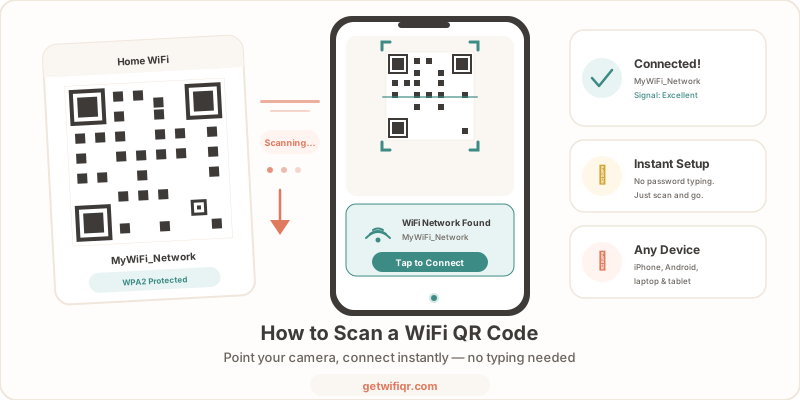
That is how a WiFi QR code scanner works — your phone doubles as a wifi password scanner that reads the credentials and connects you automatically. This guide walks you through exactly how to scan a WiFi QR code on every major device: iPhone, Android, Windows, and Mac.
What Happens When You Scan a WiFi QR Code
A WiFi QR code stores three pieces of information in a standard text format:
WIFI:T:WPA;S:NetworkName;P:YourPassword;;- T — the security type (WPA, WPA2, WPA3, WEP, or none)
- S — the network name (SSID)
- P — the password
When your phone’s camera reads this code, it parses the string and offers to connect you to that network automatically. No app involved — the operating system handles everything. The entire process takes two to three seconds.
For more detail on how this format works, see our guide to creating WiFi QR codes.
How to Scan a WiFi QR Code on iPhone
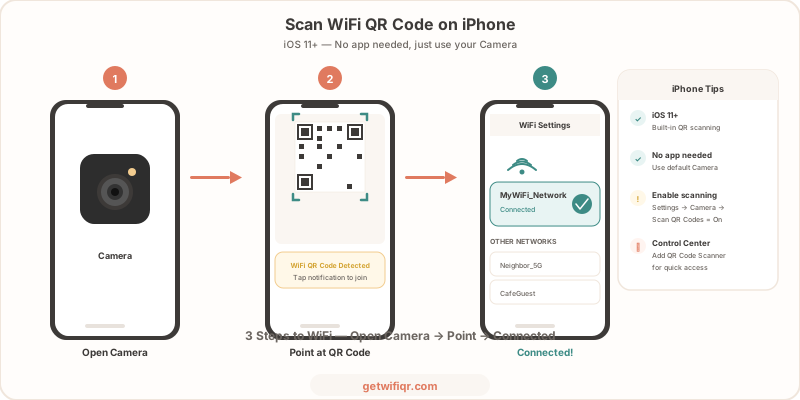
iPhones have supported WiFi QR code scanning natively since iOS 11 (2017). If your iPhone is reasonably up to date, you already have everything you need.
Using the Camera App
- Open the Camera app — the default Apple camera, not a third-party one.
- Point your camera at the QR code — hold your phone about 6 to 12 inches away and keep it steady.
- Tap the yellow notification banner — it appears at the top of the screen and says something like “Join Wi-Fi network [NetworkName].”
- Tap Join — your iPhone connects to the network.
- Done. You are online.
The whole process takes under five seconds.
Using Control Center
If the camera banner disappears too quickly or you prefer a dedicated scanner:
- Open Control Center — swipe down from the top-right corner (iPhone X and later) or swipe up from the bottom (iPhone 8 and earlier).
- Long-press the QR Code Scanner tile — it looks like a small QR code icon.
- Point at the QR code — the scanner reads it and prompts you to join the network.
iPhone Troubleshooting
- No banner appears? Go to Settings > Camera and make sure “Scan QR Codes” is toggled on.
- Camera cannot focus? Clean your camera lens. Move closer or further from the code until it is sharp.
- Connected but no internet? The WiFi password in the QR code may be outdated. Ask the network owner to verify the credentials.
How to Scan a WiFi QR Code on Android
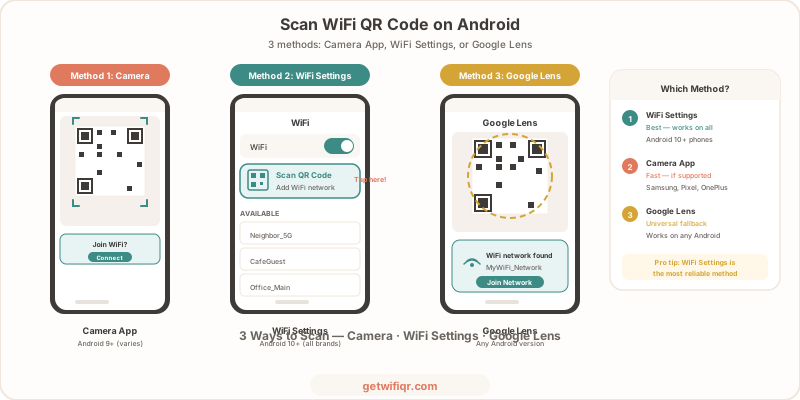
Android added native WiFi QR code support in Android 10. Most modern Android phones — Samsung, Google Pixel, OnePlus, Xiaomi — handle it out of the box.
Method 1: Camera App
- Open your camera app and point it at the QR code.
- Tap the pop-up that appears — it will offer to connect you to the WiFi network.
- Confirm to join.
Not every Android camera app supports QR scanning by default. Samsung and Pixel cameras do. If yours does not show a pop-up, try Method 2.
Method 2: Google Lens
Google Lens is the most reliable WiFi QR code scanner on Android. It works on virtually every Android phone.
- Open Google Lens — tap the Lens icon in the Google search bar widget, or open the Google app and tap the camera icon.
- Point at the QR code — Lens reads it immediately.
- Tap the WiFi network suggestion — confirm to connect.
Method 3: WiFi Settings Scanner
Android 10 and later include a QR scanner built into the WiFi settings:
- Open Settings > Wi-Fi (or Network & internet > Wi-Fi).
- Tap the QR code icon — usually next to “Add Network” at the bottom of the network list.
- Scan the code — your phone connects automatically.
This method is useful when the camera app does not support QR codes or when you are already in your WiFi settings.
Android Troubleshooting
- Camera does not detect the code? Open Google Lens instead — it has more reliable QR detection than some default camera apps.
- “Couldn’t connect” error? The password in the QR code may not match the current network password. Ask the network owner.
- Using an older Android version? Devices on Android 9 or earlier may need a third-party QR code scanner app from the Play Store. Look for “QR Code Scanner” by Google or any well-reviewed free scanner.
How to Scan a WiFi QR Code on Laptop or Desktop
Windows and macOS do not auto-connect to WiFi networks from QR codes the way phones do. But you can still use a WiFi QR code to get connected faster.
Option 1: Scan With Your Phone, Type on Your Laptop
The simplest approach:
- Scan the QR code with your phone using any of the methods above.
- Note the network name and password — most phones display the credentials briefly before connecting.
- Type the password into your laptop’s WiFi settings.
This takes a few extra seconds but requires no extra software.
Option 2: Use a Webcam QR Reader (Windows)
If you have a webcam and the QR code is in front of you:
- Open the Windows Camera app (Windows 11 supports basic QR code reading).
- Point your webcam at the QR code — the app will display the decoded text.
- Copy the password from the decoded WiFi string and paste it into your WiFi settings.
Note: Windows reads the QR code but does not auto-connect. You will need to manually join the network using the decoded credentials.
Option 3: Upload the QR Code Image
If you have the QR code as an image file (screenshot or photo):
- Use an online QR code decoder — search for “QR code reader online” in your browser.
- Upload the image — the decoder will extract the WiFi credentials.
- Connect manually using the decoded network name and password.
Troubleshooting Common Issues
Even when you know the steps, things occasionally go wrong. Here are the most common problems and how to fix them.
The QR Code Will Not Scan
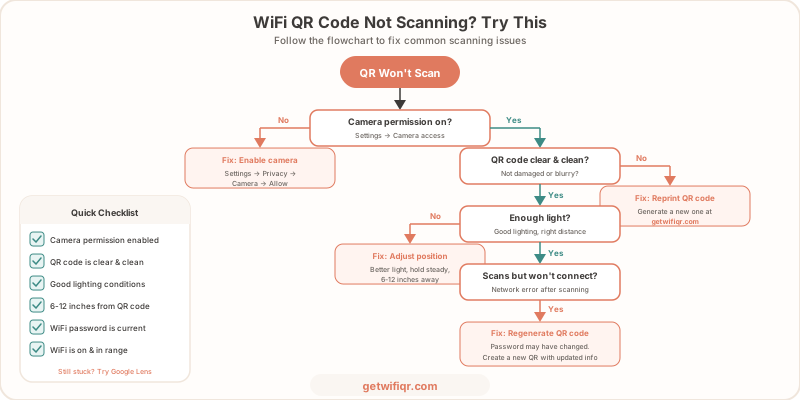
- Too small — The QR code should be at least 2 cm (about 1 inch) across for a phone camera to read it reliably. If it is printed too small, ask for a larger version.
- Damaged or blurry — Creased paper, faded ink, or a scratched screen can prevent scanning. A fresh printout fixes this. Our print guide covers best practices for size and placement.
- Poor lighting — Camera-based scanning needs decent light. Move to a better-lit area or turn on your phone’s flashlight.
- Screen glare — If the QR code is on a phone or tablet screen, tilt the device to reduce glare.
Connected to WiFi but No Internet
- Router issue — The QR code connected you to the correct network, but the router itself may not have internet. Try restarting the router.
- Captive portal — Some public networks (hotels, airports) require you to open a browser and accept terms before internet works. Open any website to trigger the portal page.
- IP conflict — Rare, but possible on busy networks. Toggle WiFi off and on to get a fresh IP address.
Wrong Password Error
The QR code was generated with a password that no longer matches the network. This happens when someone changes the WiFi password but does not update the QR code. The fix is simple — generate a new QR code with the current credentials.
WPA3 Compatibility Issues
Some older devices do not support WPA3 networks. If the QR code connects you to a WPA3 network and your device cannot join:
- Check if your router supports WPA2/WPA3 mixed mode — this lets older devices connect using WPA2.
- Ask the network owner to switch the router to mixed mode.
Do Not Have a WiFi QR Code Yet? Create One Free
If you are on the other side — you run a hotel, a restaurant, an Airbnb, or an office — and you want to give your guests a QR code to scan, you can create one in about 30 seconds.
GetWiFiQR is a free WiFi QR code generator. Enter your network name, password, and security type, and it generates a scannable QR code you can print, display, or share digitally. No account needed.
It is the easiest way to stop repeating your WiFi password to every guest who walks in.
Recap
Scanning a WiFi QR code is simple once you know where to look on your device:
| Device | Method | Auto-connects? |
|---|---|---|
| iPhone | Camera app or Control Center scanner | Yes |
| Android | Camera app, Google Lens, or WiFi Settings scanner | Yes |
| Windows | Windows Camera app or online decoder | No — manual entry |
| Mac | Phone scan + manual entry, or online decoder | No — manual entry |
On phones, the process is genuinely instant — point, tap, connected. On laptops, you will need an extra step to type the password, but the QR code still saves you from hunting down the credentials.
For more on WiFi QR code security, see our WiFi QR code security guide.