You just unboxed a new router and noticed a small QR code on the sticker underneath. You might have seen it before on an older router and ignored it. That QR code is actually one of the most useful features your router has — it lets anyone connect to your WiFi network by pointing their phone camera at it.
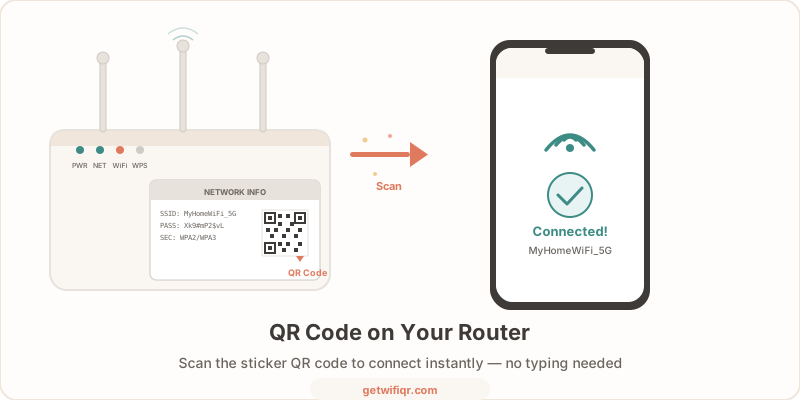
Here’s what that QR code does, how to use it, and what to do when it stops working.
Why Does Your Router Have a QR Code?
Router manufacturers started printing QR codes on their devices to solve a simple problem: typing long, complex WiFi passwords is annoying.
The QR code on your router encodes your WiFi credentials in a standard format that smartphones understand:
WIFI:T:WPA;S:YourNetworkName;P:YourPassword;H:false;;When you scan this code, your phone reads the network name, password, and encryption type, then automatically offers to connect. No typing. No spelling out characters across the room. No “was that an uppercase O or a zero?”
This format — called the WIFI URI scheme — is an open standard. It works the same way regardless of router brand or phone manufacturer.
How to Scan the QR Code on Your Router
Scanning your router’s QR code takes about three seconds:
- Find the QR code — it’s usually on a sticker on the bottom or back of the router, next to the network name and password
- Open your phone camera — use the default camera app, not a third-party QR scanner
- Point the camera at the QR code — hold your phone steady about 6-8 inches away
- Tap the notification — your phone will display a prompt asking if you want to join the network
- You’re connected — your device connects automatically using the credentials from the QR code
Device Compatibility
WiFi QR codes work natively on most modern smartphones:
- iPhone — iOS 11 and later (2017+). Use the built-in Camera app.
- Android — Android 10 and later (2019+). Use the Camera app or Google Lens.
- Older devices — download a free QR code scanner app from the App Store or Google Play.
No special app is needed for the vast majority of phones in use today.
Which Routers Have WiFi QR Codes?
Most routers manufactured after 2020 include a QR code on the sticker. Here are the major brands that include them:
- TP-Link — Archer, Deco, and most current models
- Netgear — Nighthawk, Orbi, and mesh systems
- ASUS — ROG, ZenWiFi, and RT-series routers
- Google Nest WiFi — all generations
- Eero — printed on the bottom of each unit
- Linksys — Velop mesh and recent standalone models
- Xfinity/Comcast — xFi gateway devices
If your router is more than five years old, it may only have the network name and password printed as plain text. Budget routers from lesser-known brands may also skip the QR code.
What If Your Router Doesn’t Have a QR Code?
No QR code on your router? You can create one yourself in seconds.
Go to the free WiFi QR code generator and enter three things:
- Network name (SSID) — exactly as it appears in your WiFi settings
- Password — your current WiFi password
- Security type — WPA2 or WPA3 for most modern routers
Click Generate, download the QR code as PNG or SVG, and print it. Stick it on the router, pin it to the fridge, or frame it near your front door. The whole process takes under a minute, and no signup is required.
For a detailed walkthrough, see our complete guide to creating a WiFi QR code.
What If You Changed Your WiFi Password?
Here’s the most common problem with router QR codes: the sticker shows factory-default credentials.
If you’ve done the smart thing and changed your WiFi password from the default (and you absolutely should), the QR code printed on your router is now useless. Anyone who scans it will try to connect with the old password and fail.
You have two options:
Option 1: Create a New QR Code
The fastest fix is to generate a new QR code with your current password. Print it and place it over the old sticker or somewhere more visible — like a table tent in your living room or a sign near the entrance.
Option 2: Reset to Factory Defaults (Not Recommended)
You could reset your router to match the sticker again, but this is a bad idea. Factory-default passwords are often printed on the device itself, making them easy for anyone to find. A strong, unique password is always better for security.
The smart move: Change your password to something strong, then create a fresh QR code that matches. You get both security and convenience.
Router QR Code vs. Custom QR Code
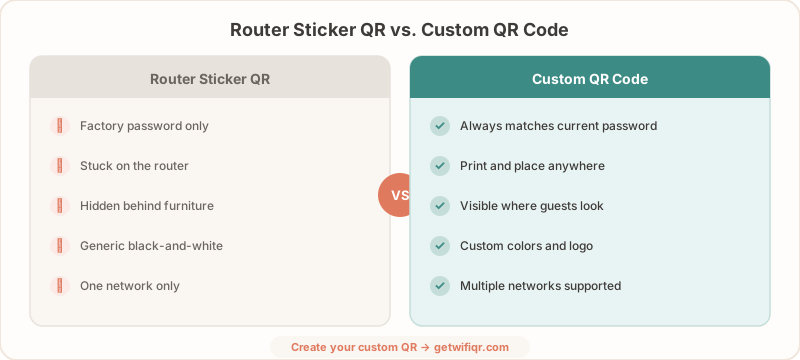
The QR code on your router gets the job done, but a custom QR code you create yourself has several advantages:
| Feature | Router Sticker QR | Custom QR Code |
|---|---|---|
| Always current | Only matches factory defaults | Matches your actual password |
| Placement | Stuck on the bottom of the router | Print and place anywhere |
| Visibility | Guests have to flip the router over | Put it where guests actually see it |
| Design | Generic black-and-white | Custom colors and logo (with Pro) |
| Multiple networks | One code for one network | Create codes for guest network, main network, IoT network |
For most people, the biggest advantage of a custom QR code is placement. Your router is probably tucked in a closet, behind a TV stand, or mounted in a utility room. A printed QR code can go anywhere — the kitchen counter, the guest bedroom nightstand, or framed on the wall.
If you run a business, custom QR codes are essential. Check out our WiFi password display ideas for creative ways to share your network with customers.
Tips for Using WiFi QR Codes at Home
A few practical tips to get the most out of your WiFi QR code:
- Print it big enough — at least 1 inch (2.5 cm) square so phone cameras can focus on it easily
- Use a guest network — create a separate network for visitors so they don’t have access to your main devices and files
- Update it when you change passwords — regenerating a QR code takes 10 seconds at GetWiFiQR
- Laminate or frame it — a protected QR code lasts longer than a paper printout near a coffee machine
- Place it where guests look — near the front door, on the fridge, or on the guest bedroom nightstand
Create Your WiFi QR Code Now
Whether your router has a QR code or not, you can create a fresh, accurate WiFi QR code in seconds. No account needed, no email required, and your credentials never leave your browser.
Create your free WiFi QR code →
Related Articles
- How to Create a WiFi QR Code (Free Step-by-Step Guide) — detailed walkthrough of the creation process
- WiFi Password Display Ideas for Every Business — creative ways to display your QR code
- WiFi Password QR Code — Create a Scannable Code — turn any WiFi password into a QR code
- Are WiFi QR Codes Secure? What You Need to Know — security best practices for sharing WiFi via QR