Some WiFi networks do not need a password. Public cafes, library reading rooms, hotel lobbies, and event venues often run open networks so visitors can get online without asking staff for credentials. A WiFi QR code makes that connection even smoother — guests scan and they are online.
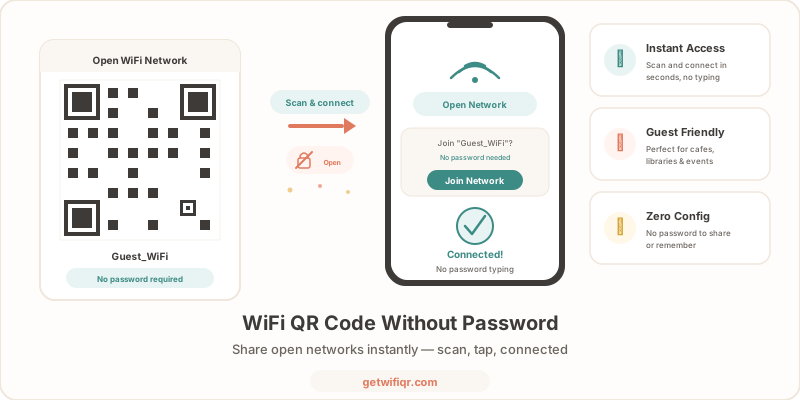
This guide shows you how to create a WiFi QR code for a network with no password, where it makes sense to use one, and when you might want to consider a password-protected alternative instead.
When You Need a Passwordless WiFi QR Code
Not every network needs a password. Here are the most common situations where an open WiFi QR code is the right fit:
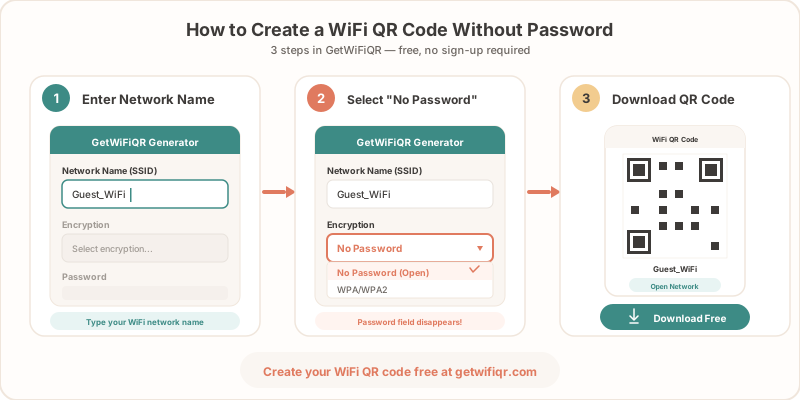
- Public cafes and coffee shops — Customers expect free WiFi without having to flag down a barista. A QR code on the counter or menu gets them connected in seconds.
- Libraries and reading rooms — Patrons come in to research and study. An open network with a visible QR code removes one more barrier.
- Waiting rooms — Doctor’s offices, car dealerships, and salons can display a QR code so visitors stay connected while they wait.
- Events and conferences — Temporary networks for workshops, trade shows, or meetups where speed of access matters more than long-term security.
- Community spaces — Coworking lounges, community centers, and municipal buildings offering public internet access.
In all of these cases, the goal is the same: get people online with the fewest steps possible.
How to Create a WiFi QR Code Without a Password
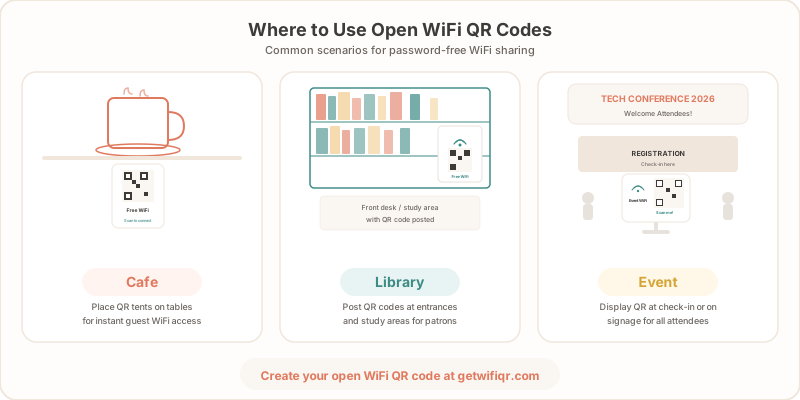
Creating a passwordless WiFi QR code takes about 30 seconds with GetWiFiQR:
- Open the generator — Go to getwifiqr.com/generator.
- Enter your network name — Type the exact SSID (network name) that your router broadcasts. Capitalization and spaces matter.
- Set security to “None” — In the security type dropdown, select None. This tells the QR code that no password is required.
- Leave the password field empty — When you select “None,” the password field is not needed.
- Generate and download — Click generate. Download the QR code as PNG or SVG and print it wherever guests will need it.
That is it. Anyone who scans the code with their phone camera will be connected to your open network automatically.
Where to Display Your QR Code
Placement matters. Put the QR code where people are most likely to need it:
- Front counter or reception desk — A table tent or small sign at eye level.
- Menu or table tent — Restaurants and cafes can add the QR code directly to their menus.
- Wall poster near the entrance — Catch visitors as they walk in.
- Event badge or program — Print the code on handouts so attendees have it from the start.
- Digital signage — Display the QR code on a lobby screen alongside other announcements.
For tips on printing and display, see our print guide for WiFi QR codes.
Security Considerations for Open Networks
An open network means no encryption between the device and the router. This is fine for casual browsing, but it comes with tradeoffs:
- Traffic is unencrypted — Anyone on the same network can potentially see unencrypted traffic. Sites using HTTPS (most sites today) are still protected, but not everything uses HTTPS.
- No access control — Anyone in range can join without scanning the QR code. The QR code is a convenience, not a security gate.
- Rogue hotspots — In public spaces, attackers can set up a network with the same name. Users might connect to the wrong one.
For many public settings — a library, a cafe, a conference — these tradeoffs are acceptable. The QR code simply makes the existing open network easier to join.
But if you handle any customer data, process payments, or want to limit who can connect, a password-protected network is the better choice. For a deeper look at WiFi QR code security, see our WiFi QR code security guide.
A Better Alternative: Guest Network With a Password
If security matters even a little, consider setting up a guest network with a simple password instead of running a fully open network. Here is why:
- Encryption — Even a simple password enables WPA2 encryption, which protects all traffic between devices and your router.
- Access control — Only people who have the password (or scan the QR code) can connect.
- Network isolation — Most routers let you isolate guest networks from your main network, keeping your business devices and files separate.
The best part: a WiFi QR code eliminates the inconvenience of having a password. Guests still scan and connect instantly — they never have to type anything. You get the security of a password without the friction.
To create a password-protected WiFi QR code, simply select WPA/WPA2 in the GetWiFiQR generator and enter your guest network password. For a full walkthrough, see our guide on how to create a WiFi QR code.
For broader tips on setting up guest networks that are both secure and easy to use, check out our guest WiFi best practices guide.
Open Network vs. Password-Protected: Quick Comparison
| Open Network | Guest Network + Password | |
|---|---|---|
| Encryption | None | WPA2/WPA3 |
| Who can join | Anyone in range | Anyone with the password or QR code |
| Setup effort | Minimal | Slightly more (set password, create QR code) |
| Guest experience with QR | Scan → connected | Scan → connected (identical) |
| Best for | Public spaces, short-term events | Businesses, venues handling customer data |
The guest experience is identical when you use a QR code — scan and connect. The only difference is what happens behind the scenes.
Create Your WiFi QR Code Now
Whether your network is open or password-protected, a WiFi QR code gets visitors online faster. Create your free WiFi QR code in seconds — just enter your network name, choose your security setting, and download.
Related Articles
- Guest WiFi Best Practices — Keep Your Network Safe and Guests Happy — set up a guest network that balances security with convenience
- Are WiFi QR Codes Secure? What You Need to Know — understand the security implications of sharing WiFi via QR
- How to Create a WiFi QR Code (Free Step-by-Step Guide) — detailed walkthrough for creating any WiFi QR code
- Free WiFi QR Code for Your Business — create a scannable code for your business in seconds
- WiFi Password QR Code — Create a Scannable Code — turn a password-protected network into a scannable QR code